Your first trade on Quiver
Quiver is a trading terminal for Robinhood Chain: live charts, the trade tape, wallet intelligence and one-click buying on one screen. This page takes you from nothing to a placed trade. About five minutes.
1Connect
There is no signup form and no password. Quiver uses Telegram for login.
- Click 🔗 Connect via Telegram at the top right of any page.
- The Quiver bot opens in Telegram. Ask it for your terminal link.
- The bot sends you a link. Click it — you land back in the terminal, logged in.

The link works once and expires after 5 minutes. If it doesn't work, just ask the bot for a new one. Your session lasts 24 hours, after which you click a fresh link.
2Your wallets
Your wallets are created and held by the Telegram bot — that's where the keys live. The terminal reads them; it never moves money in or out.
Once you're logged in, the top right shows your total balance:
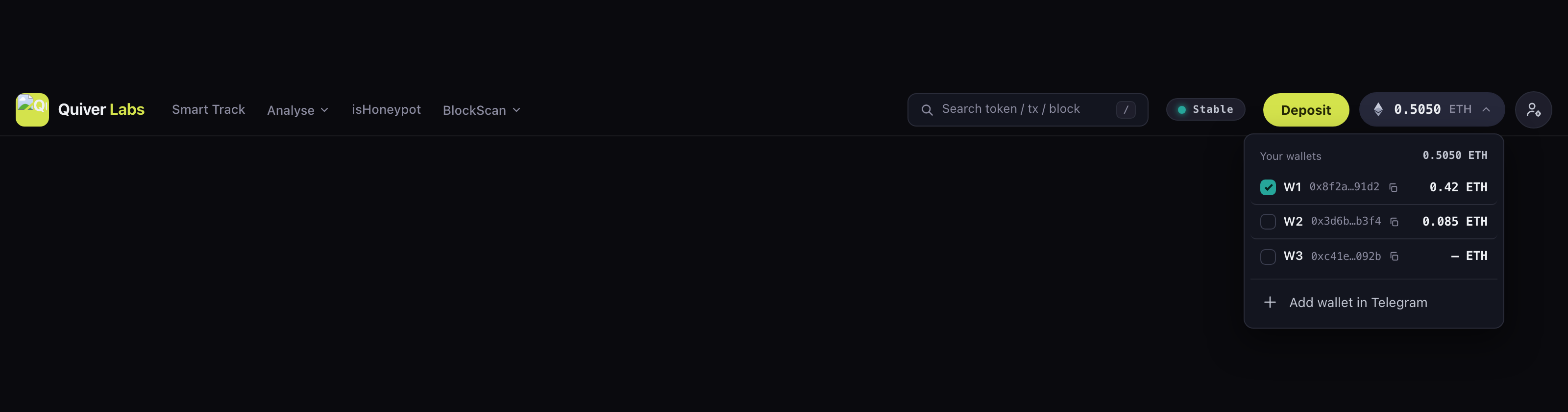
Click it to see each wallet (W1, W2, W3…), its balance, and a copy button for its address.
Adding funds
Copy your wallet's address from the wallets dropdown and send ETH to it — it appears in the terminal balance within a block or two. Deposits and withdrawals are also handled by the Telegram bot, which you can open from the account menu.
Keep a little ETH spare beyond what you plan to trade. Every trade costs gas, and Quiver's 1% fee is sent as a second transaction — so a wallet emptied to the last wei can land the swap but fail the fee.
3Find a token
Four ways in, depending on what you're doing:
| You want to… | Go to |
|---|---|
| Open a token you already know | Search — press / anywhere, or click the search box. Paste a symbol, token address, or pool address. |
| See what good wallets are buying right now | Smart Track — the live board. Click any token to open it in the terminal. |
| Catch brand-new launches | Pulse — new pairs, tokens about to graduate, and freshly graduated ones. |
| Look up a transaction or block | Same search box — paste a tx hash or a block number and it jumps you there. |
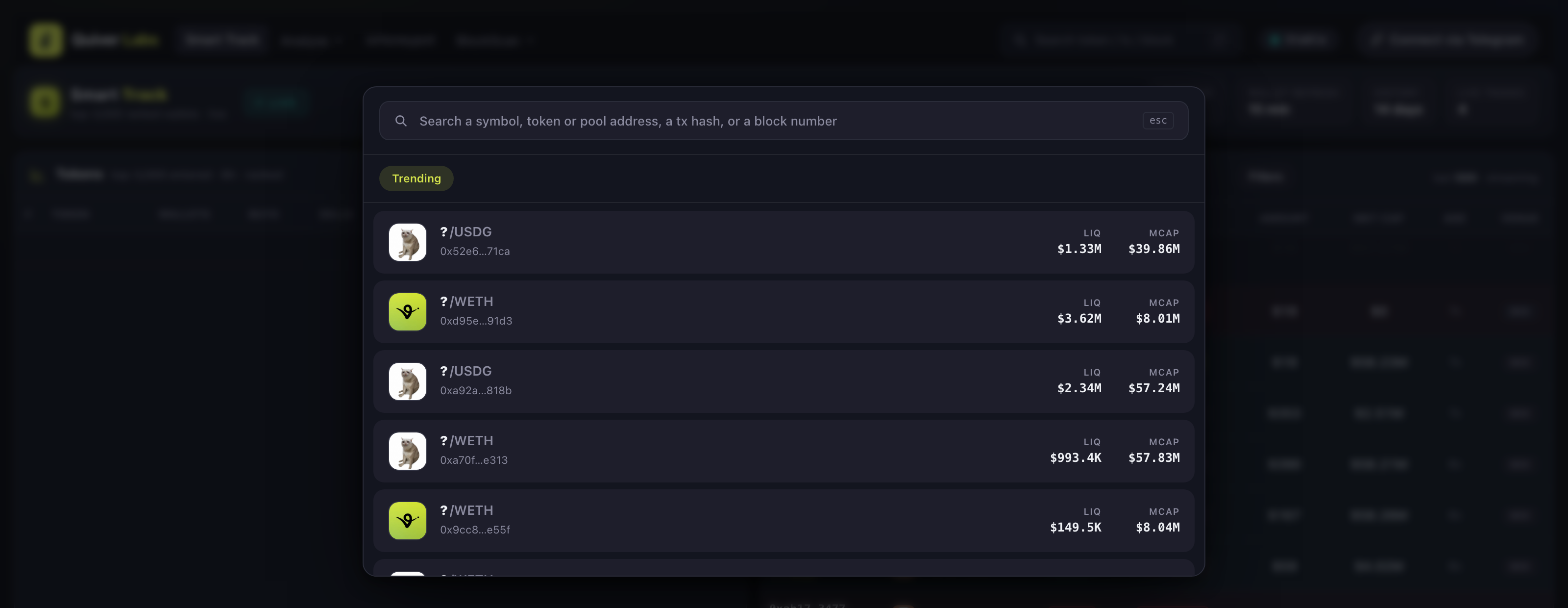
Found something you want to keep an eye on? Click the ★ next to its symbol and it pins to the strip under the nav, with its market cap updating live.
4Read the token page
This is the main screen. Left to right:
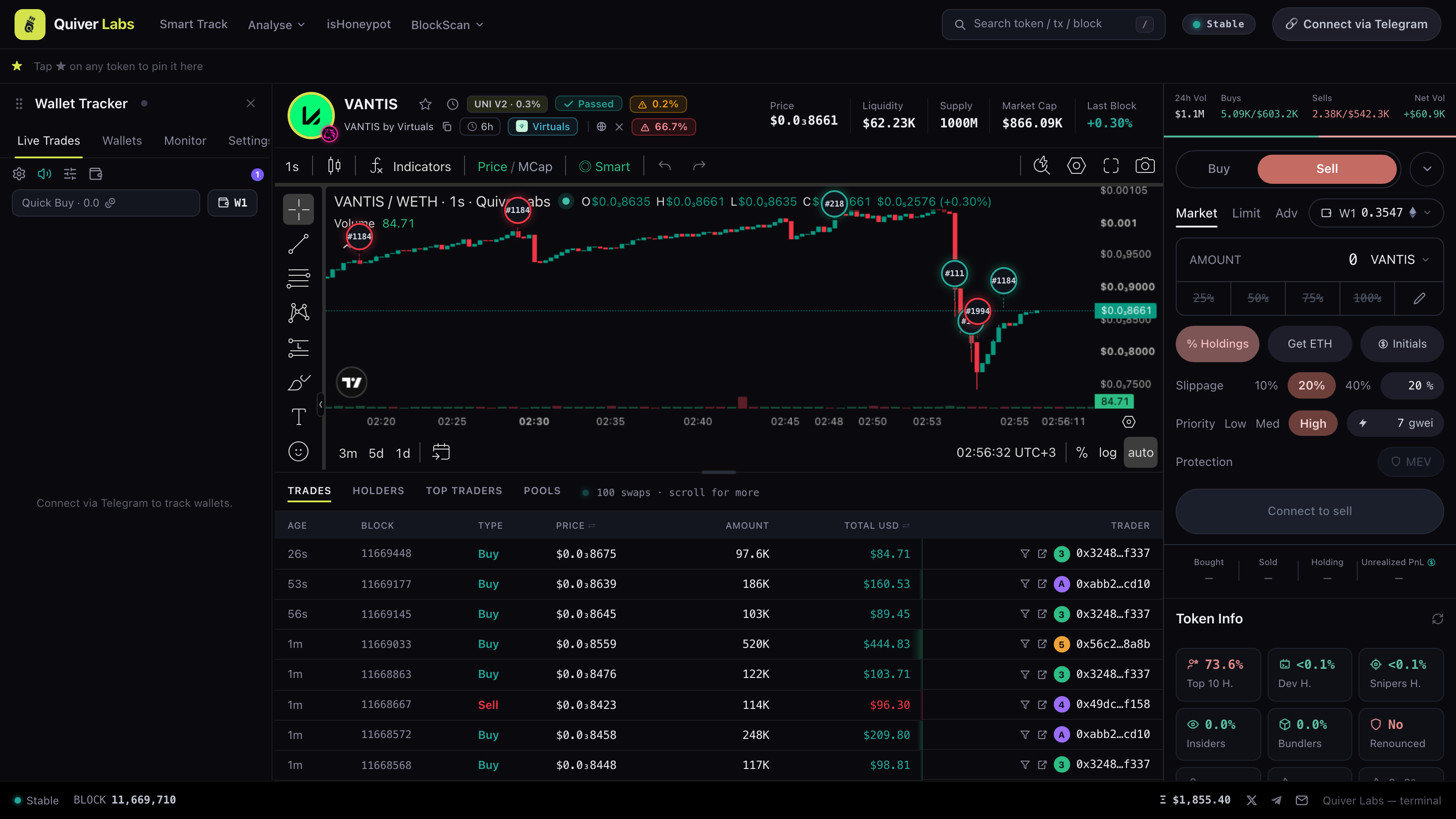
The header — check this first
Before anything else, look at the badges next to the symbol. They're the quickest read on whether a token is worth your time:
| Badge | What it's telling you |
|---|---|
| ✓ Passed | We simulated a real buy and sell against this pool and got out. Not a guarantee it's safe to hold — it's a check at one moment, at one trade size. |
| Honeypot | The sell reverted. You can buy and you cannot sell. Walk away. |
| Siphon | Holders' balances are draining without them selling. Walk away. |
| High Tax | Sellable, but a large cut is taken on the way out. |
| ⚠ N% CONNECTED SUPPLY | This share of supply is held by wallets that trace back to one funder — i.e. one operator. That's how much can be dumped on you at once. |
| ⚠ N WALLETS BIG HOLD | That many wallets each hold 3.5%+ of supply. Concentrated bags. |
Click any badge for the detail behind it.
Chart
Timeframes run from 1s to 1D. Toggle Price / MCap to price the candles in market cap instead of dollars — usually the more useful view on a memecoin.
The avatars on the chart are trades: green = buy, red = sell, sized by dollar value. Turn on Smart to show only the top-3,000 ranked wallets. Click any bubble to filter the whole page to that wallet.
Tabs under the chart
- Trades — the live tape. Click a trader to filter the page to them; the funnel icon does the same.
- Holders — who owns it, what they paid, what they're up. Chips like DEV and SNIPE mark who's who.
- Top Traders — who made and lost the most on this token.
- Pools — every pool for this token.
Token Info (right)
Top 10 H., Dev H., Snipers H., Insiders, Bundlers — each is a share of supply, and each turns red past its risk threshold. Green is fine, red is a reason to look closer.
A dash — means we don't know, not zero. On a token that's minutes old, some of these haven't been computed yet, so you'll see dashes rather than a reassuring 0%.
5Buy
Quiver is a sniper terminal. Clicking an amount preset sends the trade immediately — there is no confirmation dialog. The chain produces about 10 blocks a second, and a confirm step costs you blocks.
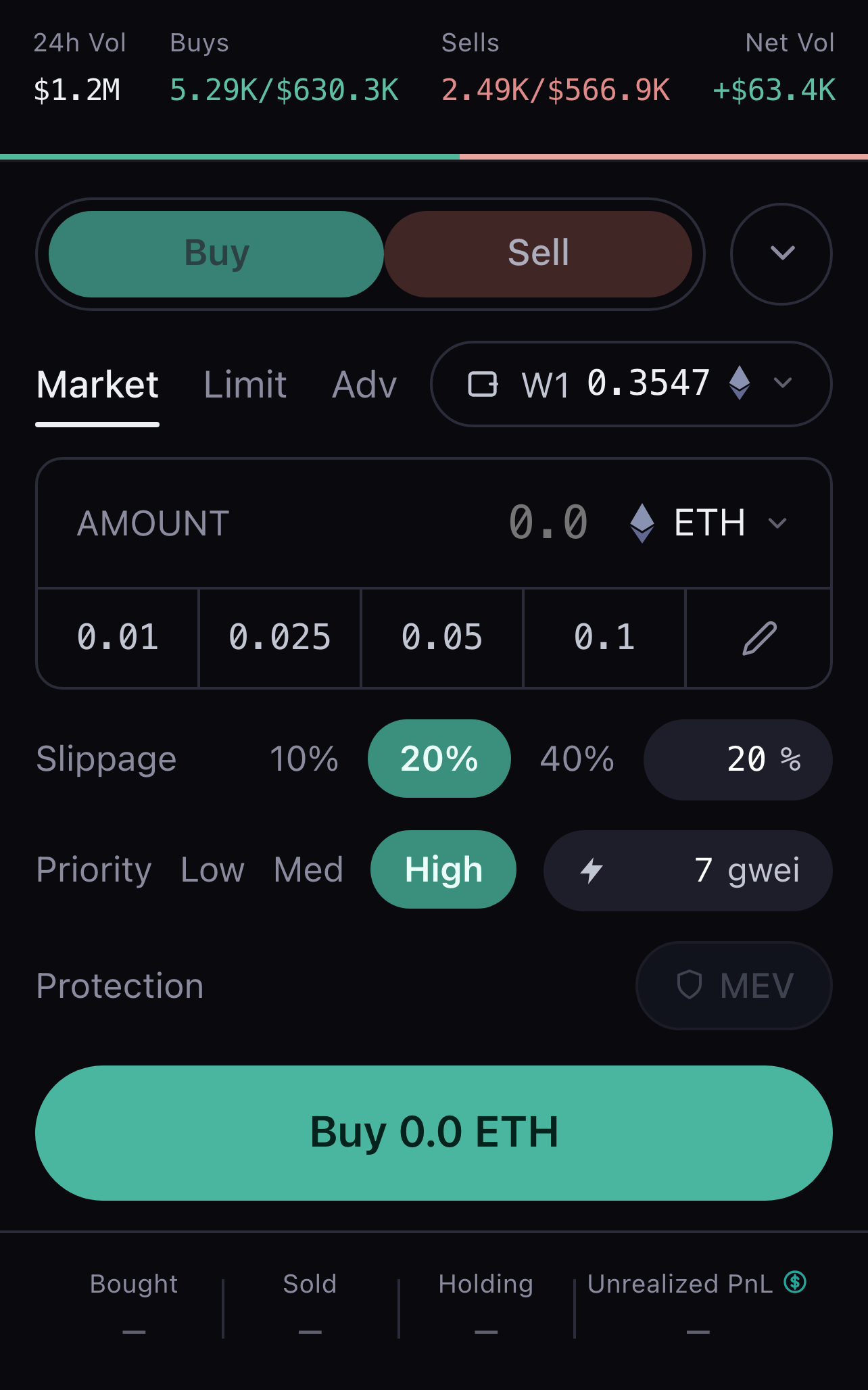
- Pick the wallet to trade from (the chip at the top of the panel).
- Check Slippage. 20% is the default and is reasonable on a moving memecoin; lower it if you want to be strict about your fill.
- Click an amount — 0.01, 0.025, 0.05, 0.1 — and that's the trade sent. Or type an amount and hit Buy.
Editing the presets: click the pencil, change the numbers, save. One to five per side.
Current limits
- Buying only for now. Selling is coming.
- Uniswap V3 pools, paying in ETH. If a token's main pool is V2, V4 or still on a bonding curve, the buy button will tell you it can't route there yet.
6After the trade
You'll see two messages, and the difference matters:
| Message | What actually happened |
|---|---|
| ⏳ Sent | The transaction left the signer. That's all — it is not a completed buy yet. |
| ✓ Bought | Confirmed on-chain. The tokens are in your wallet. |
| ! Reverted | It failed on-chain — usually slippage or thin liquidity. Your ETH is safe; you only paid gas. |
| ⏳ Still pending | It hasn't mined yet. Check the tx on the explorer. |
Fees
Quiver takes 1% of the amount you spend, sent as a separate transaction, and only after the swap is confirmed. If your buy reverts, there is no fee.
Trading builds lifetime volume, which moves you up the tiers — Novice → Advanced → Pro → Elite → Legend. Higher tiers earn cashback on the fee. Cashback accrues now; payouts open in a later release.
Where to next
Quiver Labs · Robinhood Chain · [email protected]